> ## Documentation Index
> Fetch the complete documentation index at: https://docs-dev-chore-gt-workflow.mintlify.site/llms.txt
> Use this file to discover all available pages before exploring further.

> Auth0 Vault 接続を設定して、Management API へのリクエストを認可する方法を学びます。

# Auth0 Vault 接続

<h2 id="get-access-to-auth0-management-api">
  Auth0 Management API にアクセスする
</h2>

[Auth0 Management API 用に認可された Machine-to-Machine (M2M) アプリケーションを作成](/docs/ja-jp/get-started/auth0-overview/create-applications/machine-to-machine-apps)。

<Warning>
  M2M アプリケーションが Auth0 Management API にアクセスできるよう認可し、最小権限の原則に従って適切なスコープを選択してください。

  * Get User の場合: `read:users`
  * Create User の場合: `create:users`
  * Update User の場合: `update:users`
</Warning>

<Callout icon="file-lines" color="#0EA5E9" iconType="regular">
  Auth0 テナントで構成済みの Provider を通じて通知を送信する場合、Auth0 Management API の認可は不要です。
</Callout>

<h2 id="configure-your-vault-connection">
  Vault 接続を設定する
</h2>

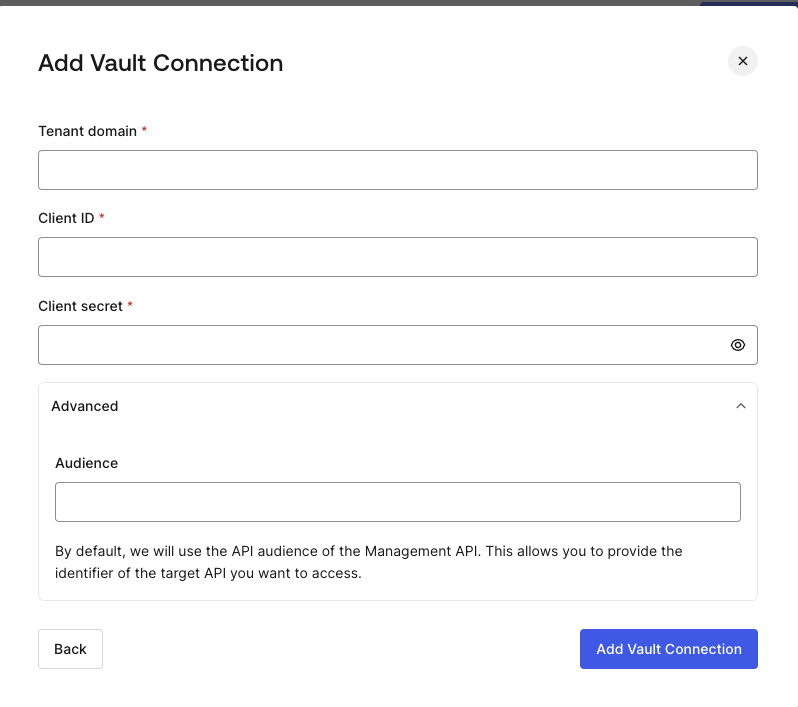
Auth0 フローの Actions 用に Auth0 Vault 接続を設定するには、前の手順で作成した M2M アプリケーションに基づいて、必要なパラメーターを設定します。
<Frame>
  <img src="https://mintcdn.com/docs-dev-chore-gt-workflow/l9E67ma4IIIcojc8/docs/images/customize/forms/vaults/auth0-vault-connection.png?fit=max&auto=format&n=l9E67ma4IIIcojc8&q=85&s=ca27b38c4508751f83d3bf2c243a95e3" alt="Auth0 Dashboard > Actions > フォーム > Vault > Auth0" data-og-width="798" width="798" data-og-height="707" height="707" data-path="docs/images/customize/forms/vaults/auth0-vault-connection.png" data-optimize="true" data-opv="3" srcset="https://mintcdn.com/docs-dev-chore-gt-workflow/l9E67ma4IIIcojc8/docs/images/customize/forms/vaults/auth0-vault-connection.png?w=280&fit=max&auto=format&n=l9E67ma4IIIcojc8&q=85&s=49c992130f06483909c17c5a32d06e95 280w, https://mintcdn.com/docs-dev-chore-gt-workflow/l9E67ma4IIIcojc8/docs/images/customize/forms/vaults/auth0-vault-connection.png?w=560&fit=max&auto=format&n=l9E67ma4IIIcojc8&q=85&s=a5466718e6e2d443b1e809f5f390efd3 560w, https://mintcdn.com/docs-dev-chore-gt-workflow/l9E67ma4IIIcojc8/docs/images/customize/forms/vaults/auth0-vault-connection.png?w=840&fit=max&auto=format&n=l9E67ma4IIIcojc8&q=85&s=8fa365b3429c0f2d110f5bb52d8ef4da 840w, https://mintcdn.com/docs-dev-chore-gt-workflow/l9E67ma4IIIcojc8/docs/images/customize/forms/vaults/auth0-vault-connection.png?w=1100&fit=max&auto=format&n=l9E67ma4IIIcojc8&q=85&s=2d471bee01b0f9718c3129e69b8a701b 1100w, https://mintcdn.com/docs-dev-chore-gt-workflow/l9E67ma4IIIcojc8/docs/images/customize/forms/vaults/auth0-vault-connection.png?w=1650&fit=max&auto=format&n=l9E67ma4IIIcojc8&q=85&s=149d61e1845b4f87a984da1dded89d9f 1650w, https://mintcdn.com/docs-dev-chore-gt-workflow/l9E67ma4IIIcojc8/docs/images/customize/forms/vaults/auth0-vault-connection.png?w=2500&fit=max&auto=format&n=l9E67ma4IIIcojc8&q=85&s=34f76e4cbe9cce50e4824576512fb8f0 2500w" />
</Frame>

<h4 id="input-settings">
  入力設定
</h4>

| Parameter           | Description                                                    |
| ------------------- | -------------------------------------------------------------- |
| Tenant Domain       | M2M アプリケーションのTenant Domain。                                    |
| Client ID           | Auth0 Management API へのアクセスが許可された M2M アプリケーションの Client ID。     |
| Client Secret       | Auth0 Management API へのアクセスが許可された M2M アプリケーションの Client Secret。 |
| Audience (Optional) | Auth0 Management API の audience。                               |

<Callout icon="file-lines" color="#0EA5E9" iconType="regular">
  デフォルトでは、audience は Tenant Domain に基づいて設定されます。
</Callout>
